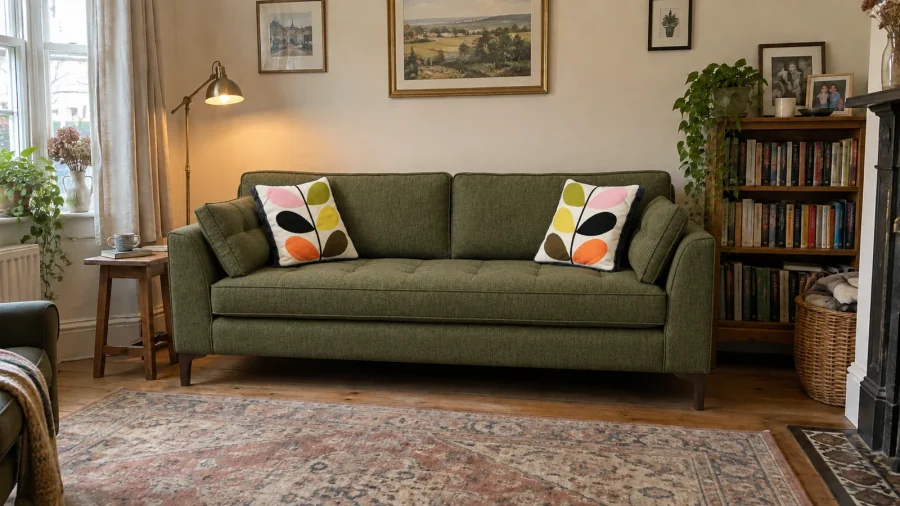
Start with a product image, fabric image or a Cutout Studio render. You need enough tokens for the cost shown before generation.
Generate an image
- Open the AI editor.
- Choose an empty source image slot.
- Choose an image in Image Browser.
- Enter a prompt describing the result you want.
- Choose your image settings.
- Review the token cost on Generate.
- Choose Generate.
Use My Uploads in Image Browser to upload an image from your computer. You can also choose available images from AI Output, Fabrics & Materials or Cutout Studio.
For example, with a sofa image selected, try: “Place this sofa in a light living room with oak flooring and soft daylight. Keep the sofa's shape and fabric.”
Generation begins when you choose Generate. Changing the prompt or previewing an image does not start it.
Review the result
Wait for the generation to finish in the history gallery. Open the image to inspect it, download it or use it in another generation.
Check the product's shape, fabric and details before using the image. If you want a different result, adjust the prompt or source images before generating again.
If Generate is unavailable, check the prompt, required source images and token balance. For more controls, see Use the AI editor.