Use the AI editor to create images and video. The settings panel holds your source images, prompt and generation controls. The history gallery holds your previous work.
For the shortest path to an image, follow Create your first AI image.
Choose source images
Choose an empty source image slot to open Image Browser, or drag an image from your computer onto a slot.
The browser offers the sources available in the current workflow:
| Source | What you can choose |
|---|---|
| My Uploads | Images you upload from your computer. |
| Product, when available | A product from your accessible catalogue. |
| AI Output | Images from previous generations. |
| Fabrics & Materials | Images from your material library. |
| Cutout Studio | Product renders from Cutout Studio. |
Use additional image slots, when available, for references that show the setting, composition or style you want. Remove an image with its X button. Reset clears the loaded source images.
Write a prompt
Describe the image you want in the prompt field. The field accepts up to 2,500 characters.
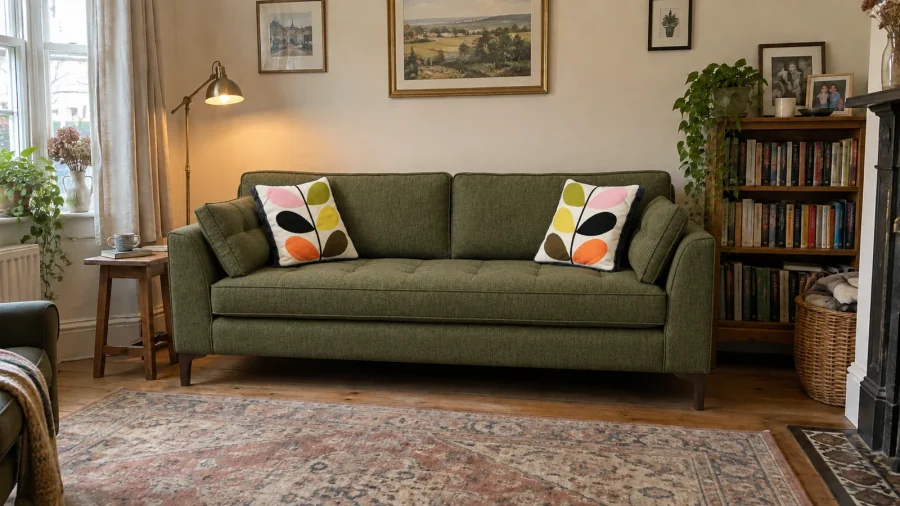
Name the subject, setting, lighting and important details. For example: “Place this sofa in a bright living room with oak flooring and soft daylight. Keep the sofa's shape and fabric.”
Use the prompt help controls for writing guidance or to expand a short description. See prompt examples for product and fabric tasks.
Choose image settings
| Control | What it changes |
|---|---|
| Type | Whether you create an image or video. |
| Ratio | The proportions of the output. Available ratios depend on the selected type. |
| Resolution | The output size. Image options include 1K, 2K and 4K. |
| Count | The number of image variations generated together. |
The token cost on Generate changes with your settings. Start with one image while you refine a prompt. Increasing the count generates more images and increases the cost.
Create a video
Choose the video type to show its settings. The available controls depend on the video mode:
- New creates a video from a source image and prompt.
- Extend continues a previous supported video.
- Jump uses a first and last frame.
Use Res and Duration where they are available. Some resolutions require a fixed duration; the editor shows that duration instead of a choice.
Review the token cost on Generate Video before starting. Image count controls do not apply to video.
Start a generation
- Check the source images and prompt.
- Check the output settings.
- Review the token cost.
- Choose Generate or Generate Video.
The generation appears in the history gallery while it runs. If you do not have enough tokens, the editor offers token purchase options. You can also check your balance.
Find and use a previous image
Open an image in the history gallery to inspect it at a larger size. Use the available controls to download it or start another generation from it.
Use favourites to keep useful results together. Previous AI images are also available from AI Output in Image Browser.
Review product shapes, fabric patterns and other important details before publishing generated imagery. A new prompt or reference image may produce a different result.
If a generation does not finish
Check the generation's status in the history gallery. A pending or processing generation is still running. If it fails, review the displayed error before trying again.
If Generate is unavailable, check the prompt, required source images and token balance. Avoid starting another generation while the first is still running unless you want another chargeable result.