
Optimal Custom Integration
Build a complete ecommerce product page around one persistent OV25 iframe, including external options, product switching, synchronized loading, lifestyle photography and live angle thumbnails.
The product page below combines the hosted OV25 iframe with a fully custom storefront. OV25 handles the 3D experience; your application handles everything around it: navigation, product copy, size cards, option controls, lifestyle photography, price, basket and URL history.
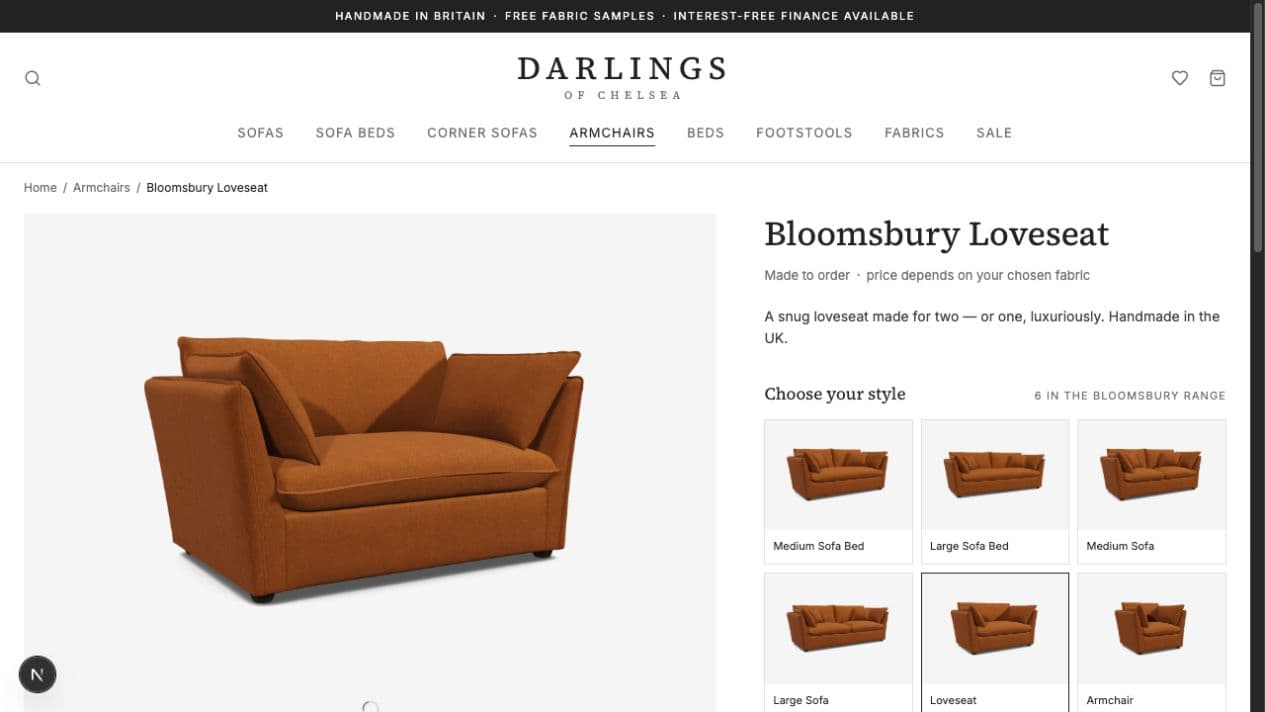
This architecture gives you a completely custom storefront without rebuilding the configurator. It works with React, Vue, another framework or plain JavaScript because the integration boundary is the browser's standard postMessage API.
The architecture
Keep one iframe mounted for the lifetime of the product-page experience. Build your interface in the parent page and treat messages from OV25 as its live source of configurator state.
| Your product page | Hosted OV25 iframe |
|---|---|
| Header, breadcrumbs and product copy | 3D scene and camera controls |
| Lifestyle photography and gallery layout | Product models, materials and configuration rules |
| Size and product cards | Current option/group/selection state |
| Fabric, leg and other option controls | Price and SKU calculation |
| Loading cover and spinner | Render-ready loading state |
| Basket, checkout and analytics | Live angle thumbnail rendering |
| Product routes and browser history | Canonical configuration query string |
Do not unmount or reparent the iframe when the visitor changes product or navigates between views in a single-page application. Hide it with CSS when necessary and use SELECT_PRODUCT for product changes. That preserves the WebGL scene, avoids a fresh handshake and makes switching much faster.
Static pages and client-side navigation work together
You do not have to choose between SEO-friendly ecommerce pages and a smooth single-page experience. We recommend combining both:
- Pre-render every product and category URL with static generation, or server-render it when the content must be request-specific.
- Include the product title, description, canonical URL, structured data, price fallback and poster image in the initial HTML.
- Hydrate the page in the browser, then use your framework's client-side router for subsequent navigation.
- Place the iframe in a shared product layout so product-to-product route changes update the surrounding content without unmounting the configurator.
- On each client-side product change, update the route and send
SELECT_PRODUCTto the existing iframe.
The result is the best of both worlds: a direct visit or refresh receives a complete, cacheable page, while navigation after hydration feels instant and preserves the live 3D session.
In frameworks with persistent layouts, such as the Next.js App Router, put the configurator shell in the shared layout and statically generate each product route beneath it. In other stacks, use the same principle with a persistent application shell and the History API. The important detail is that the product content can change while the iframe DOM node stays in place.
1. Prepare the embed
Create a Product Configurator Access API key, add every production and preview hostname to your authorized domains, and collect the OV25 IDs of the products the page can switch between.
The product path can contain one ID or several IDs joined with hyphens. Loading the relevant range up front lets the parent switch products without replacing the iframe URL.
For a single product, use one ID. You can also use the documented /range/[RANGE_ID] URL when a range is the better catalogue boundary. Keep the product list relevant to the page: every included product contributes data to the initial payload.
The viewer makes a small left/right rotation on first load by default. Add gestureHint: 'true' to query to show the animated hand hint and disable that rotation, or add hideJiggle: 'true' to disable the rotation without showing the hand hint. The legacy hideGestureHint: 'true' option only hides the hand hint; it does not stop the rotation. See Gesture hint and startup rotation for all options.
Embed it with a useful title and the browser permissions needed by optional AR/VR features:
If the viewer is above the fold, do not lazy-load it. Give its container a stable aspect ratio so the page does not jump while the iframe starts.
Use an initial image while the 3D view loads
Show a product poster immediately and load the iframe underneath it. The poster gives the page a complete first paint while the model, materials and first frame are prepared; it should not delay the iframe itself.
Use a product image from your CMS or a stable Product Cutout Image. Give it the same aspect ratio and framing as the viewer so the transition does not jump.
Layer the poster above the iframe and remove it with a short opacity transition only after the correct first frame is ready:
Track both the requested product and the render state. An iframe load event only means that its document loaded; it does not mean the product is ready to reveal.
If the first gallery must appear as one complete unit, add cutoutsReady to the reveal condition. Use a short fallback so a failed thumbnail capture never leaves the visitor permanently behind the poster. On later product switches, reuse the same pattern with the incoming product's poster; do not unmount the iframe.
2. Create a safe message bridge
Standard OV25 messages use { type, payload }; payload is normally JSON serialized. Live cutouts are the exception: their transferable ImageBitmap objects are top-level fields so the browser can move them without copying.
Always validate both the sender origin and the sender window. Send commands to the exact configurator origin rather than "*" in production.
Use the matching localhost origin while developing locally. Do not weaken the production origin check to make local testing convenient.
3. Mirror the configurator state
These are the core messages for a custom product page:
| Message | Use it for |
|---|---|
ALL_PRODUCTS | Build product/size cards and map OV25 IDs to your routes. |
CURRENT_PRODUCT_ID | Confirm which product the iframe is currently displaying. |
CONFIGURATOR_STATE | Render external option controls and read the selected configuration. |
SELECTED_SELECTIONS | Observe a lightweight selection-only update when you do not need the full option tree. |
CURRENT_PRICE | Update the displayed configured price. Prefer formattedPrice when available. |
CURRENT_SKU | Build the configured basket line in your commerce system. |
CURRENT_QUERY_STRING | Keep the page URL shareable and restore the exact configuration on refresh. |
IS_LOADING | Know when the correct newly configured frame has actually been presented. |
CUTOUT_THUMBNAILS | Populate gallery tiles with renders of the current live configuration. |
ERROR | Show a recoverable error state and log integration failures. |
A small parent-side store is enough:
The interfaces above are intentionally abbreviated. Generate your exact app types from the payloads you consume, and see the API / Custom Integration reference for every field and message.
4. Render the options outside the iframe
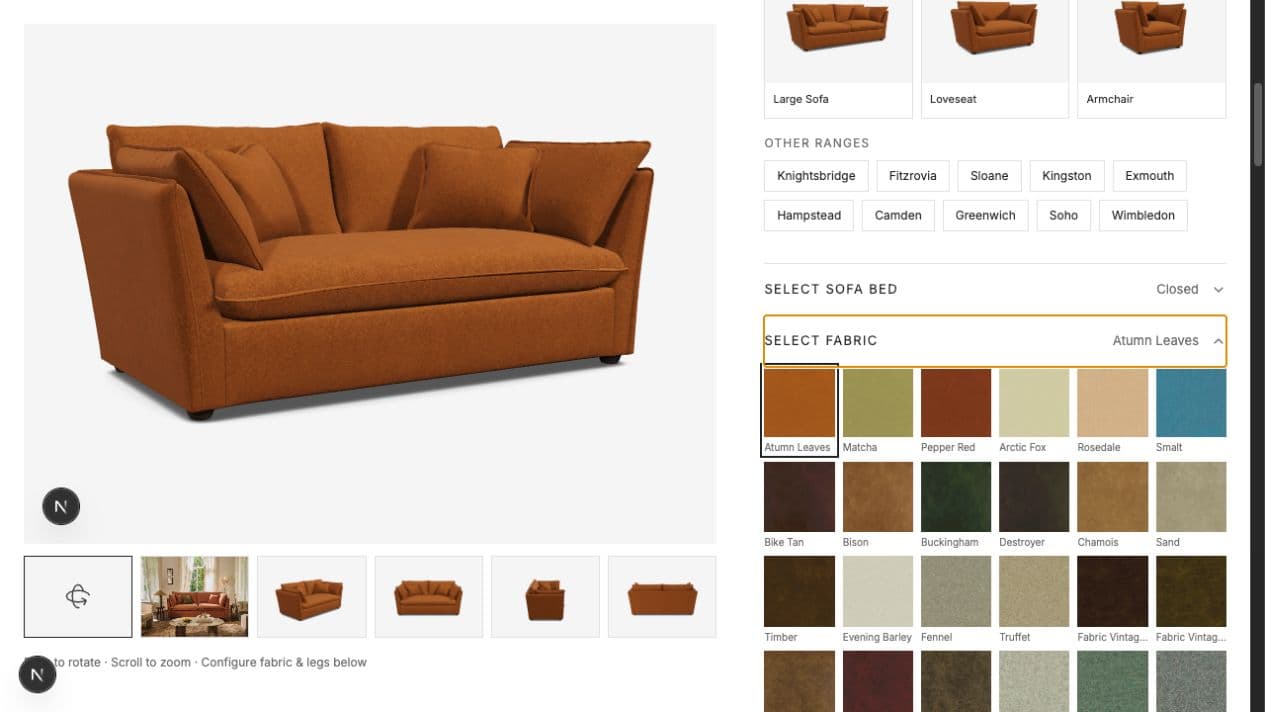
CONFIGURATOR_STATE contains the current option tree plus selectedSelections. Render those rows using your storefront design system and send the selected IDs back to OV25.
The ID payload is deterministic and recommended. A single display-name pair such as { Legs: "Medium Oak" } is also supported when your product catalogue cannot store OV25 IDs; see SELECT_SELECTION in the API reference for its fuzzy-matching rules.
5. Switch products without reloading the iframe
Map each product or size to its OV25 product ID. Update the parent route immediately, keep the iframe mounted, then send:
SELECT_PRODUCT_RECEIVED acknowledges the command, but it is not the reveal signal. Keep the poster or loading cover in place until:
CURRENT_PRODUCT_IDequals the requested ID.IS_LOADINGisfalse.- Any gallery assets that you require for an atomic reveal are ready.
This distinction prevents a stale frame from the previous product flashing between loading phases.
6. Build the synchronized carousel
The example page uses this order:
- Interactive 360° view.
- Lifestyle image from your CMS.
- Four live cutouts at
-45,0,-90and180degrees.
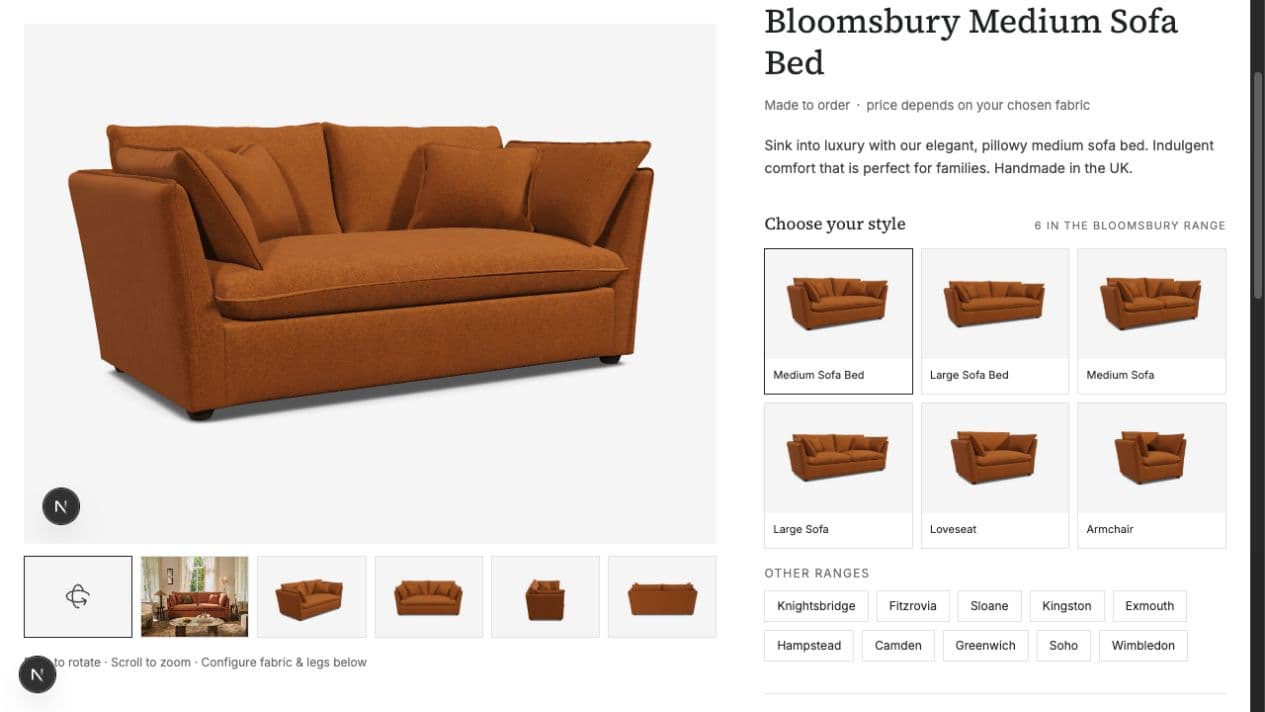
The lifestyle image comes from your CMS. The remaining angle images arrive from OV25 as one complete CUTOUT_THUMBNAILS set. Convert each bitmap to an object URL, close the bitmap, then replace the previous set together:
When a cutout tile is clicked, rotate and lock the live viewer to the same angle. The 360° tile releases the camera again:
Keep the iframe mounted underneath any lifestyle image or product poster shown in the main media area. Switching gallery items should change visibility, not reconstruct the WebGL application.
See Live Angle Thumbnails for performance guidance, lifecycle details and more angle recipes.
7. Synchronize every dependent image with the scene
The key loading rule is: receive early, reveal late.
CONFIGURATOR_STATE can announce the new fabric before the correct pixels are on screen. Use it to begin preloading your product imagery, but keep the last settled images visible. Commit the new set only when OV25 sends IS_LOADING: false.
Use a visual spinner over the viewer while it is busy, with accessible text available to assistive technology rather than a visible technical status such as “Rendering”.
For product switches, wait for the matching product ID and the idle signal. For selection changes on the same product, IS_LOADING: false is the commit point for related product-card images. Replace live cutouts only as a complete set, never tile by tile.
8. Restore URLs and complete the basket flow
When CURRENT_QUERY_STRING arrives, put it into your product-page URL with history.replaceState. A copied link will then restore the selected product configuration when it is loaded back into the iframe.
Your application owns the basket flow. At “Add to basket”, combine:
- your product identifier and quantity;
CURRENT_SKU;CURRENT_PRICE;SELECTED_SELECTIONSor the selected values fromCONFIGURATOR_STATE;- the current shareable product URL, if useful for customer service or saved baskets.
Validate the current product ID and ensure IS_LOADING is false before accepting the basket action. The iframe supplies the configured commerce data; your commerce backend remains responsible for inventory, tax, discounts, persistence and checkout.
9. Handle failure without trapping the visitor
- Keep a product poster available for the iframe's first load and product transitions.
- Log
ERRORmessages with their message type and product ID, then show a concise retry action. - If live cutouts fail, reveal the ready 3D scene after a short fallback instead of leaving a permanent loading cover.
- Revoke old object URLs and call
ImageBitmap.close()on every received bitmap, including discarded or stale sets. - Ignore cutout sets whose product ID no longer matches the requested product.
- Remove the
messagelistener and revoke all remaining object URLs when the integration is destroyed.
Production checklist
- Product Configurator Access key created.
- Production, preview and local hostnames authorized.
- One stable iframe instance with a fixed-aspect-ratio container.
-
event.originandevent.sourcechecked on every incoming message. - Exact production origin used as the
postMessagetarget. - External controls rendered from
CONFIGURATOR_STATErather than a duplicated rules model. - Product cards mapped to OV25 IDs and switched with
SELECT_PRODUCT. - Spinner driven by
IS_LOADING, with no visible technical loading copy. - Dependent imagery staged until
IS_LOADING: false. - Carousel ordered as 360°, lifestyle, then live cutouts.
- Bitmaps closed and object URLs revoked.
- Current price, SKU and selection state captured for the basket.
- Keyboard focus, pressed states and useful alternative text provided for all controls.
- Mobile layout tested without reloading or moving the iframe.
Once these pieces are in place, the iframe is just the rendering and configuration engine inside a page that remains completely yours. Use the full API reference when you need AR, dimensions, screenshots, analytics or the less common message types.