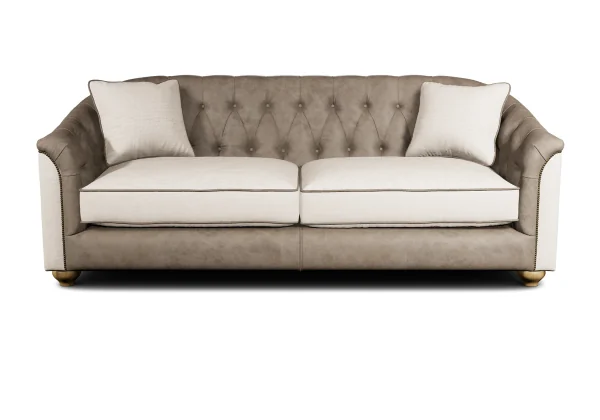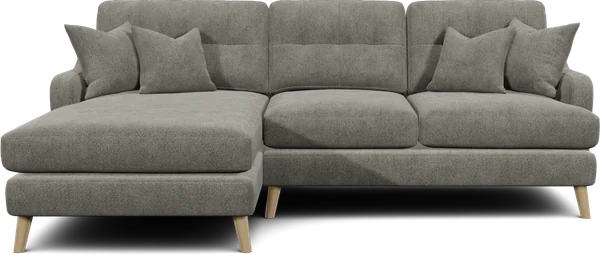




Use Products to find products, edit their details and choose what customers see in the configurator.
Find a product
- Open Products.
- If you see a manufacturer list, choose the manufacturer.
- Choose a range.
- Choose the product you want to edit.
You can also search for a product by name. The catalogue shows products available to your account. Some accounts open directly at their ranges.
A product or range ID identifies the configurator used on your website. See the website integration guides before connecting it to a product page.
Edit product details
- Open the product.
- Edit the details or images you want to change.
- Choose Save changes.
Wait for Product information saved successfully. Product details do not save as you type.
| Detail | What it is used for |
|---|---|
| Hero Image | The main image in the product's configurator gallery. |
| Cutout Image | A product image with a transparent background. |
| Gallery Images | Additional images in the gallery. |
| Short Description and Full Description | Descriptions of the product. |
| Category and Tags | Information used to organise products. |
| Custom Fields | Additional text or images for the product. |
| Dimensions (cm) | The product's physical dimensions. |
Dimensions are editable in the manufacturer's account. Other accounts see Dimensions (cm) (Read-only). Access to a shared product does not give you permission to change its source dimensions.
Choose a default fabric or finish
- Open an option, such as Fabrics, in the product's configurator controls.
- Choose the fabric or finish you want to use as the default.
- Check the 3D preview.
- Choose Save changes.
Choosing a selection updates the preview and prepares a new default. The default changes on the product only after you save. Rotating or zooming the preview lets you inspect the model.
See fabric visibility and discontinuation for full instructions, including restoring fabrics.
Hide a choice on this product
- Find the option, group or selection in the configurator controls.
- Use its eye button to hide it.
- Choose Save changes.
The change applies to this product's configurator. It does not delete the fabric or make it unavailable on every product.
For account-wide material allowances, use Available Materials. For physical fabric samples, use Swatches.
See Discontinue or restore products for the catalogue controls and group defaults.
Change catalogue-wide product setup
When no product is open, Product setup appears beside the catalogue. It contains separate controls to:
- Discontinue manufacturers, ranges or products from product lists, SKUs, pricing and related catalogue tools.
- Discontinue fabrics, finishes, legs and other selections across your catalogue.
- Set default fabrics and variants for your products.
Check the products affected before choosing Save changes. Choose Discard to remove your unsaved setup edits.
Share a preview
Choose Get preview link in the preview panel:
- No-config preview shows the saved configuration without customer controls.
- Configurator preview includes interactive product choices.
These links show the product; they do not grant access to edit your catalogue. Create in AI opens image creation for the product.