
Products
Manage your product catalog, ranges, and product metadata
Selecting a Product/Range
The Products Page is your central hub for managing your entire product catalog. Here you can view, edit and set up your products.
Initially you will see a list of Manufacturers with products you have access to.
Selecting a manufacturer will show you a list of ranges from that manufacturer you have access to.
Selecting a range will show you a list of products you have access to.
For ranges and products the list will show an ID for each product and range. This is a unique identifier for the product or range and is used to display the configurator on your website. See developer documentation for more information on using this.
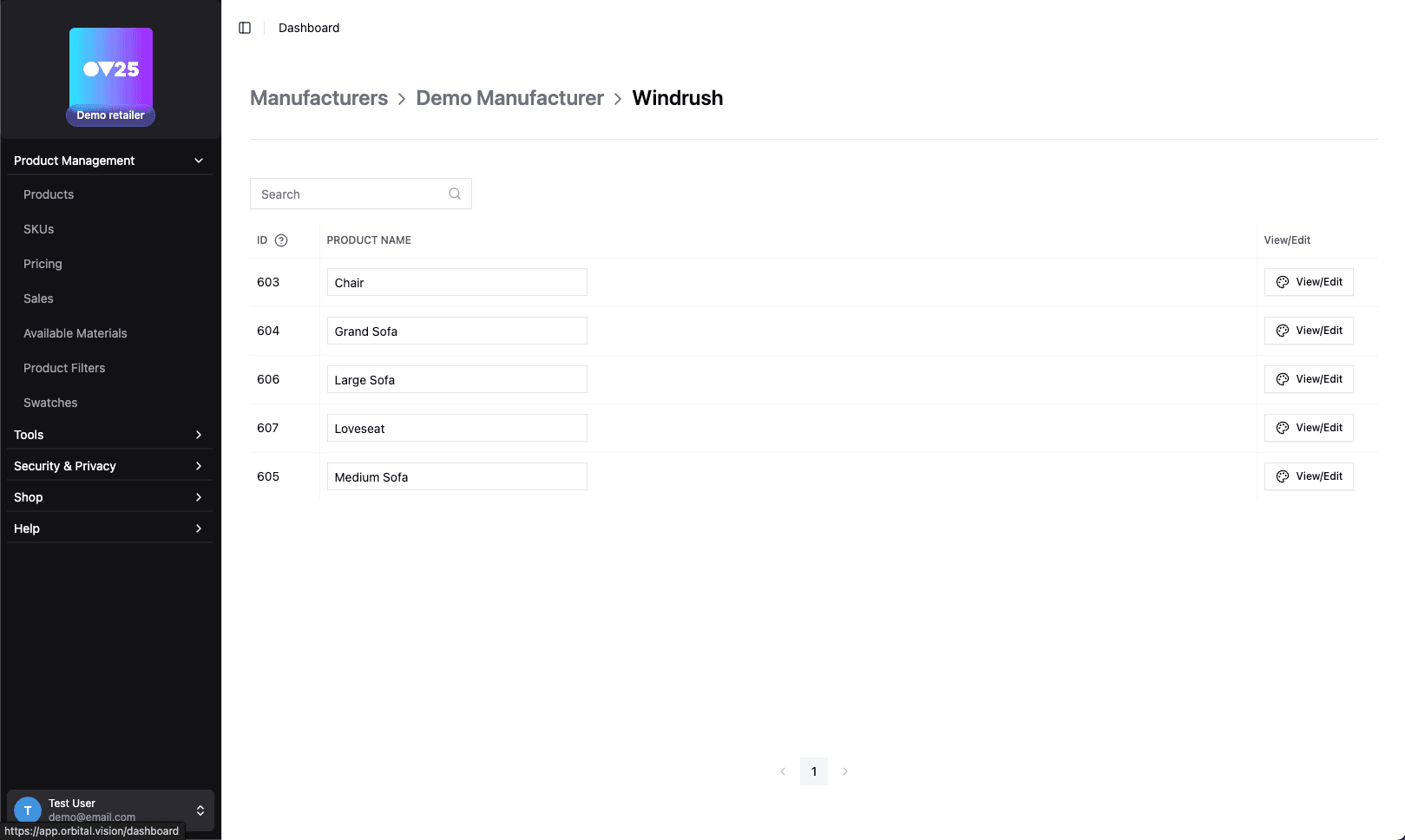
Viewing and Editing Products
Clicking a product (or its "View Product" button) opens the product editor, where you can edit the product's details and preview its 3D model.
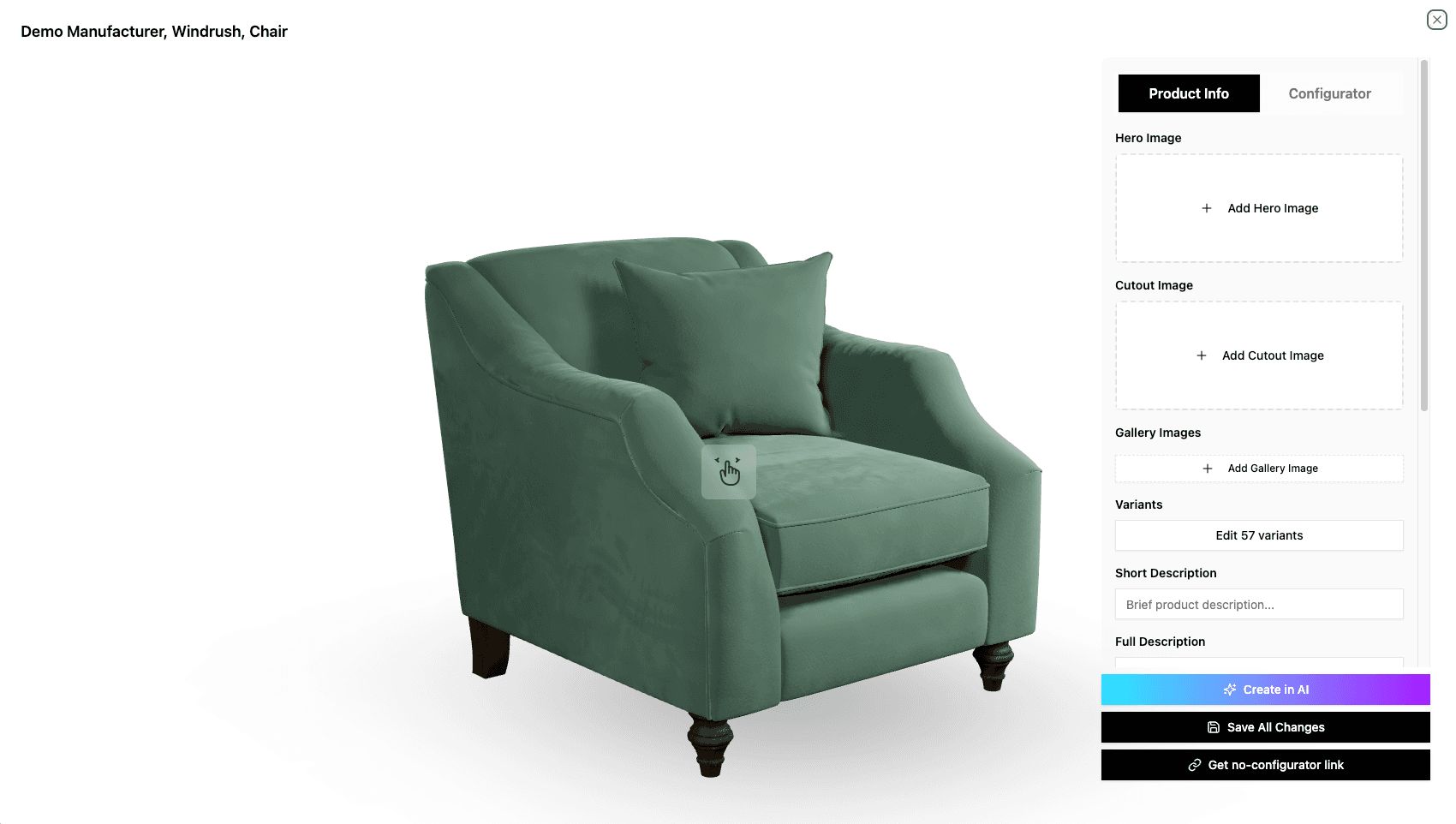
In the Preview panel you can click and drag the 3D model to rotate it, and use the mouse wheel to zoom in and out.
The bar at the top of the editor has two buttons:
- "Create in AI": Inline view of the AI Image Generation Tool for the product.
- "Save changes": Save all changes to the product
Clicking "Get preview link" in the Preview panel gives you two shareable links:
- "No-config preview": Opens the product in the saved configuration without showing customer controls.
- "Configurator preview": Opens the product with interactive selections visible beside the preview.
Product Details
The editor allows you to view and edit all product-related information:
- Hero Image: The main image for the product, first to be displayed in the configurator gallery.
- Cutout Image: A high quality image of the product, with a transparent background.
- Gallery Images: Additional images for the product, to be displayed in the configurator gallery.
- Short Description: Brief product description
- Full Description: Detailed product description
- Category: Shared across all products/ranges, used for organising your products.
- Tags: Add any number of tags to the product, useful for organisation, searching and filtering.
- Dimensions (Read-only): The dimensions of the product, in centimeters. Set by the manufacturer.
- Custom Fields: Custom metadata fields, used for storing any additional information you need. Can be text or image.
Click the "Save changes" button to save your changes.
Configurator Options
The configurator panel, below the Preview, shows all available Options, Groups and Variants for the product.
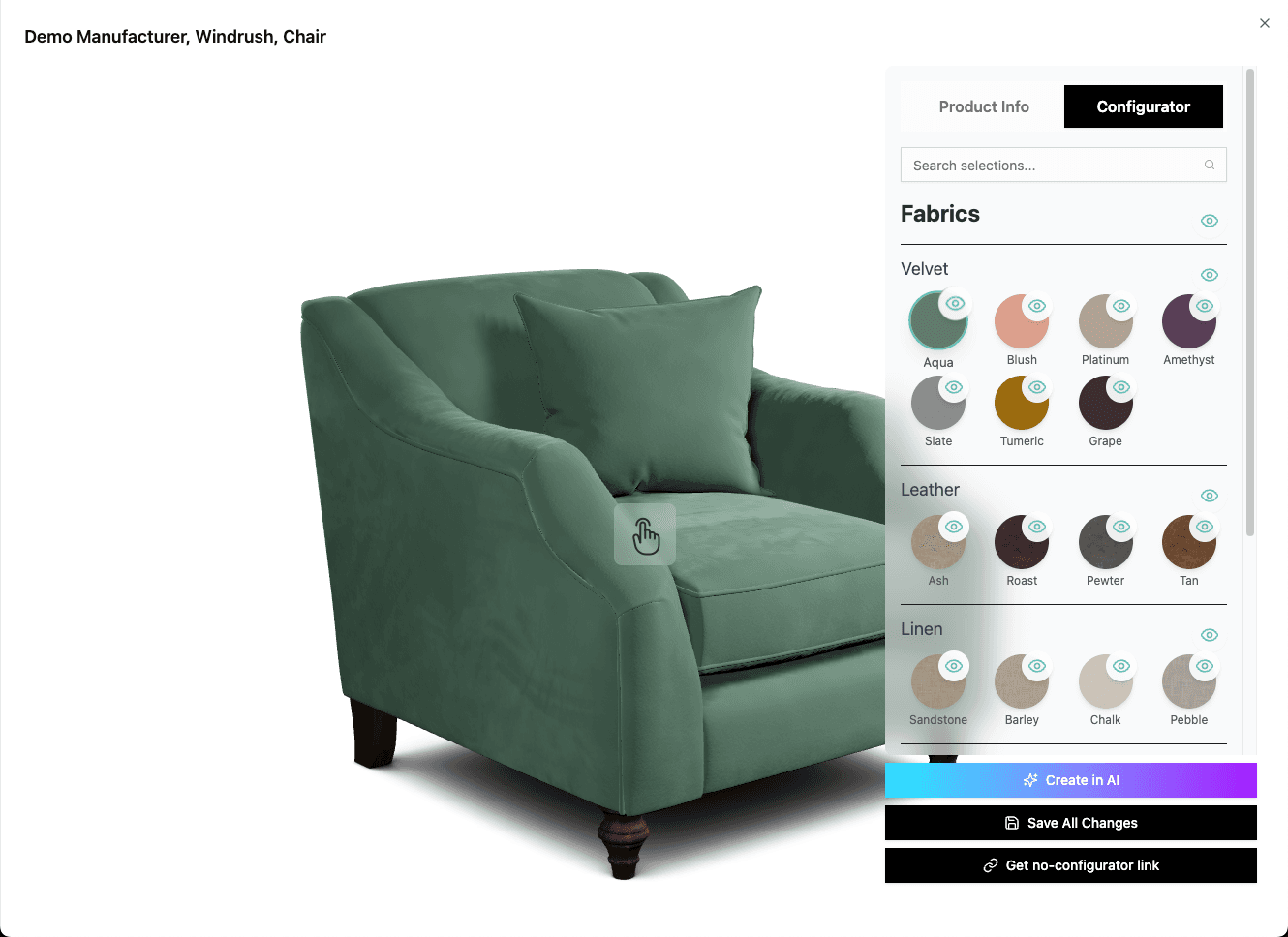
You can click a variant to preview it on the 3D model.
You can click the "eye" icon to activate/deactivate an option, group or variant. Deactivated ones will not be displayed in any configurator this product appears in.
Product Setup
When no product is open, the right-hand side of the page shows the "Product setup" panel. Here you can:
- Discontinue manufacturers, ranges, or products to hide them from product lists, SKUs, pricing, and related catalogue tools.
- Discontinue fabrics, finishes, legs, and other selections globally.
- Set up default fabrics and variants for your products.
Click the "Save changes" button at the top of the panel to apply your changes, or "Discard" to throw them away.
🚀 Next Steps
After setting up your products:
- Create SKUs → SKU Management
- Set up Pricing → Pricing Management