
Pricing & SKUs
Manage SKU codes, selection names, direct prices, price grades, and conditional pricing in one place.
Pricing and SKUs for your products can be set in the OV25 Dashboard.
Understanding SKUs
SKUs (Stock Keeping Units) are identifiers for ranges, products and selections, such as fabrics or legs. A configured product has a composite SKU made from its range SKU, product SKU and selected variant SKUs.
For example, CLEO/3-SEATER-SOFA/BLACK-LEATHER/OAK identifies a Cleo 3 Seater Sofa with black leather and oak legs. Configurators and e-commerce integrations use this code to identify the full configuration.
Your SKU mappings are kept separately for each manufacturer.
1. Give products & variants a price grade
Open the first step to edit SKU codes and prices in the same table. Rows are grouped by manufacturer and category, such as Products or Fabrics.
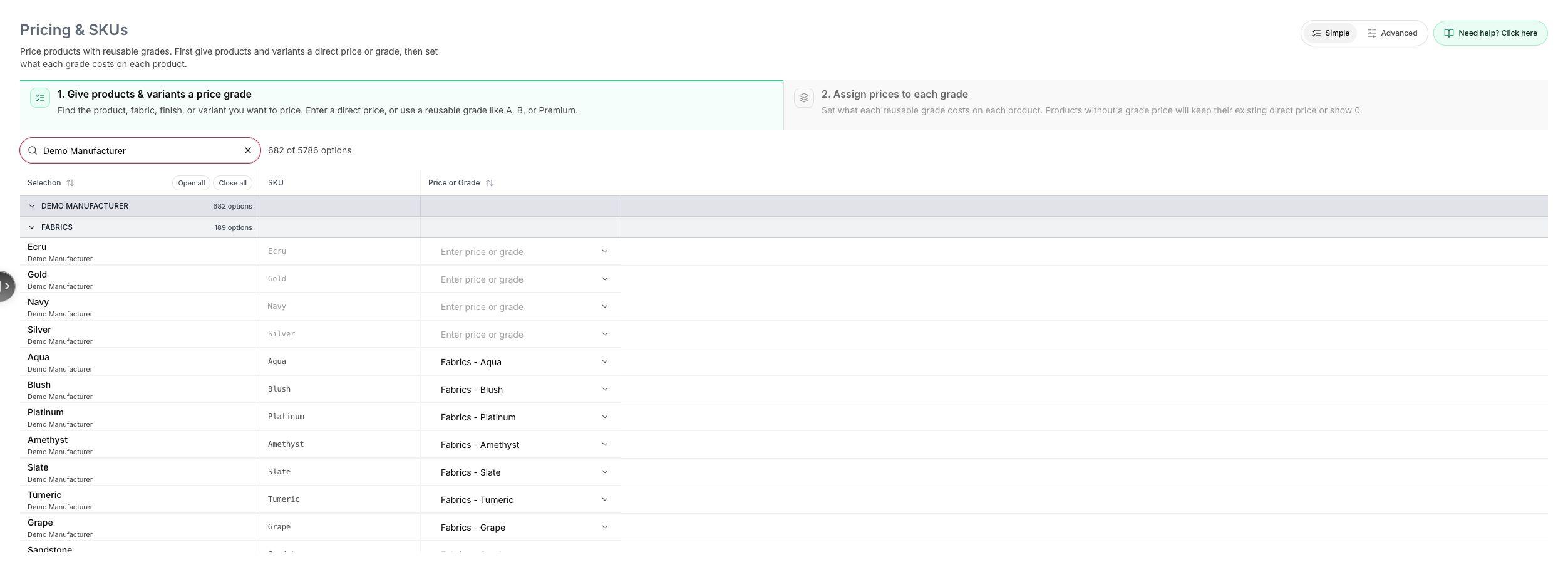
| Column | What to enter |
|---|---|
| Selection | The selection's display name. Editable selection names let you use your own names for fabrics, finishes and variants. |
| SKU | Your uniquely identifiable code for the range, product or selection. |
| Price or Grade | A numeric price, such as 1299.00, or a grade name, such as Standard or Luxury. Use the arrow to choose an existing grade. |
Use the search box to find a manufacturer, category, selection or SKU. Click a group heading to expand or collapse it, or use Open all and Close all. Click Selection or Price or Grade to sort the rows.
Edits save when you press Enter or leave the field. Choosing an existing grade from the dropdown saves it immediately. There is no separate Save button.
Direct prices or price grades?
Use a direct price when a product or selection has a fixed price. For example, enter 1299.00 on a product to give it a base price of £1,299, or 50.00 on a selection to add £50 when it is chosen.
A price grade is a reusable label for selections that share a price. Assign Standard to your standard fabrics and Luxury to your luxury fabrics. You can then set a different price for each grade on each product, without editing every fabric individually.
2. Assign prices to each grade
After creating at least one grade in step 1, open Assign prices to each grade. Each row is a product, grouped by manufacturer and range; each grade has its own column. Enter the price where the product row meets the grade column.
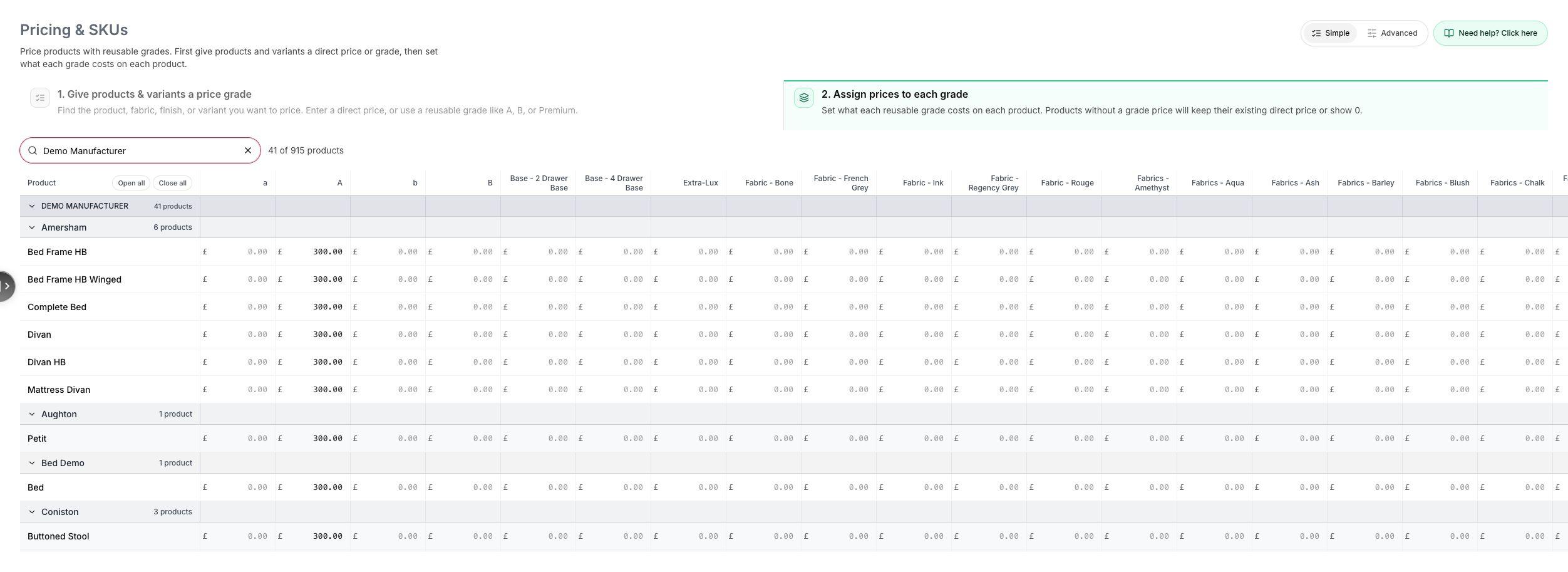
For example, a sofa with no separate base price could cost £1,299 with Standard fabrics and £1,499 with Luxury fabrics. Enter those values in that sofa's row. The same grades can have different prices on another product.
Use the search box to find a manufacturer, range or product. Scroll horizontally to reach grade columns beyond the visible table. Products without a grade price keep their existing direct price or show 0.
A grade is charged only once per product. If two selected variants both use grade A priced at £10, they add £10 in total. Use different grades for options that need separate charges.
3. Add conditional grade assignments (Advanced)
Select Advanced at the top right, then open Add conditional grade assignments. This lets you change a grade's price for a specific product when a particular fabric, finish or variant is selected.
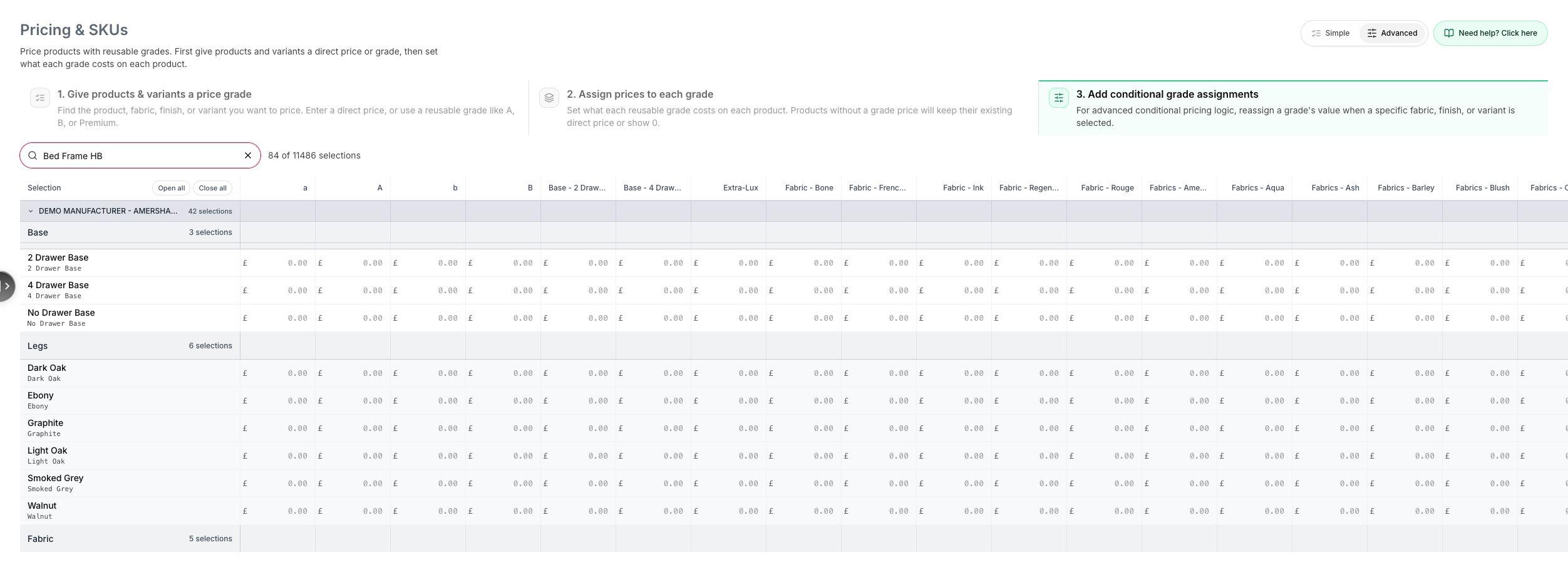
Search for the product and check that the group heading includes its name. Manufacturer and range groups apply changes more broadly. In the product's group, find the selection that should trigger the change, then enter the replacement price in the relevant grade column. For example, selecting a particular leg finish could change the Luxury fabric grade price for that sofa. Leave a cell blank to use the grade's normal product price from step 2.
Guided pricing examples
Click Need help? Click here at the top right to choose a walkthrough:
- One fixed product price - the price stays the same for every fabric, finish or variant.
- One product, many prices - the price changes with the selected fabric or variant.
- Complex variant pricing - one selection changes the price of another grade.
The walkthrough uses temporary demo data and returns to your real pricing when it closes.